XDA reported that Microsoft’s new Intelligent Terminal isn’t locked to Copilot, and one of its early testers had it wired to a local LLM within five minutes. The wider point is more interesting than the demo: the terminal itself is turning into an AI surface. The days of piping a prompt through curl into a chat window are ending. The good terminals now embed the model, the history, and the command palette in one buffer.
We tested seven AI-integrated terminal apps on Windows, macOS, and Linux. The list covers the commercial front-runners, the open-source picks that let you bring your own key, the platform defaults that added AI as an extension, and the editor-first tools that made the terminal an AI panel of its own.
What to look for in an AI-integrated terminal
- Command generation from natural language. The baseline. Type “find all files larger than 100MB and sort by date,” get a real command back that runs on your shell.
- Error explanation. When a command fails, the terminal should offer a diagnosis before you have to copy the output somewhere.
- Local model support. Cloud-only AI in a terminal is a leak risk. The picks that let you point at Ollama, LM Studio, or a local endpoint earn a higher score.
- Shell independence. Locking to zsh or PowerShell only limits you. Cross-shell picks work in bash, fish, pwsh, and nushell.
- Session portability. AI-generated command blocks should be shareable, exportable, or at least persistent across sessions.
- Price honesty. Two of the picks below charge for their AI features. We noted where the free tier stops.
Quick comparison
| App | Best for | Platforms | Free plan | Starting price/mo |
|---|---|---|---|---|
| Warp | AI-first workflows out of the box | Windows, macOS, Linux | Yes, generous | $15 for Pro |
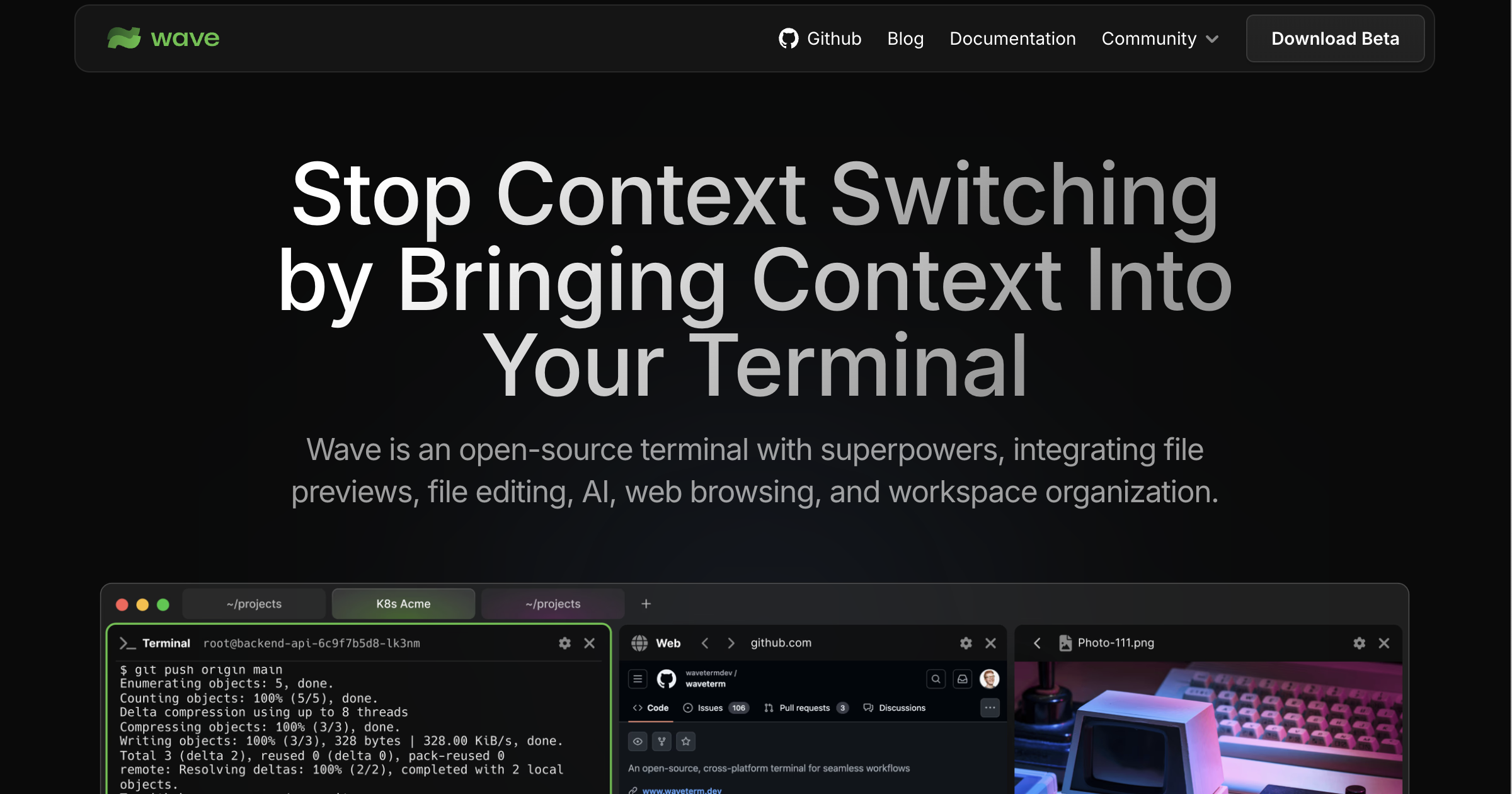
| Wave Terminal | Open-source AI with your own model | Windows, macOS, Linux | Yes, fully | Free |
| Windows Terminal | Windows users who want Copilot in the shell | Windows | Yes | Copilot subscription |
| iTerm2 | Mac users who want native AI Chat | macOS | Yes, fully | BYO OpenAI key |
| WezTerm | Lua-scriptable AI hooks | Windows, macOS, Linux | Yes, fully | Free |
| Tabby | Modern cross-platform with AI plugin | Windows, macOS, Linux | Yes, fully | Free |
| Cursor | Editor-first users who live in the AI terminal | Windows, macOS, Linux | Yes | $20 for Pro |
The apps
1. Warp — Best AI-integrated terminal for most people
Warp is the terminal that made AI-in-the-shell a category. Commands sit in shareable “blocks” that group input and output, the Agent panel writes multi-step commands with real repo awareness, and Warp AI explains error output the moment a block turns red. Warp added local model support in 2026, so you can point the Agent at Ollama for private work and keep the cloud model for pattern-heavy tasks all in the same session. Runs on Windows, macOS, and Linux.
Where it falls short. Warp still records telemetry in the free tier, and the cloud AI keeps your prompt history server-side by default. Privacy-serious teams turn both off, but the setting is not the default. The commercial polish also means fewer keyboard shortcuts feel scriptable. Warp is opinionated.
Pricing.
- Free: unlimited AI queries at reasonable rates, one seat, cloud sync.
- Paid: $15 per seat per month for Pro, adds team sharing, unlimited history, and priority.
Platforms: Windows, macOS, Linux.
Download: Warp
Bottom line. Pick Warp if you want the fewest steps between “I need to do a thing in the shell” and “the shell does the thing.” Skip it if telemetry-off is a firm rule.
2. Wave Terminal — Best open-source AI terminal
Wave Terminal is the open-source answer to Warp. It wires AI to your own keys — OpenAI, Anthropic, or a local endpoint via Ollama — and puts the model chat right in the buffer next to your commands. Sessions survive flaky SSH, graphical previews render inline, and the whole thing is MIT-licensed so you can audit or fork it.
Where it falls short. Wave has more surface area than a minimalist terminal, and the extra features can feel busy if you only wanted a fast shell. The AI is only as good as the model you point it at, so the first-hour setup includes wiring up an API key or a local runner.
Pricing.
- Free: fully, no paid tier.
- Paid: none.
Platforms: Windows, macOS, Linux.
Download: Wave Terminal
Bottom line. Pick Wave if you want AI in the terminal without giving up open-source guarantees or cloud-only lock-in.
3. Windows Terminal — Best for Windows-first users with Copilot
Windows Terminal is Microsoft’s default shell app on Windows 11, and Copilot in Windows now surfaces inside it through an extension. Ask a natural-language question, get a suggested PowerShell command, run it in the same tab. The 2026 addition, Microsoft’s Intelligent Terminal preview, accepts local model backends alongside Copilot, so you can route your prompts through Ollama when the query touches private data.
Where it falls short. Windows-only, and the AI features assume you’re on a Windows 11 build with the right Copilot updates. Linux users on WSL can still open Windows Terminal, but the AI panel is not portable to macOS or a native Linux box.
Pricing.
- Free: the terminal itself. Copilot integration needs a paid Copilot plan or a local model.
- Paid: Copilot Pro at around $20 per month if you want the Microsoft cloud model.
Platforms: Windows.
Download: Microsoft Store — Windows Terminal
Bottom line. Pick Windows Terminal if you already live on Windows and want AI in your default shell without switching apps.
4. iTerm2 — Best for macOS with built-in AI Chat
iTerm2 has been the default power-user terminal on macOS for a decade, and the 3.5 release added a native AI Chat feature. Paste your OpenAI or Anthropic key once, then invoke the model from any pane. The AI can generate commands, explain failed output, and — with the newer prompt configuration — draft multi-line scripts from a description.
Where it falls short. macOS-only. The AI Chat panel needs your own API key, so you pay usage costs to whichever provider you choose. Some of the newer AI-first terminals ship more polished agent loops, and iTerm2’s AI feels more like a companion than an integrated agent by comparison.
Pricing.
- Free: the terminal itself, fully.
- Paid: pay-as-you-go to your model provider.
Platforms: macOS.
Download: iTerm2
Bottom line. Pick iTerm2 if you’re on macOS, have used it for years, and want AI without changing your habits.
5. WezTerm — Best for extensibility
WezTerm is a GPU-accelerated, cross-platform terminal written in Rust with Lua as its configuration language. It has no AI baked in, but the Lua hooks let you wire in any model provider — community configs already exist for OpenAI, Anthropic, Ollama, and local WebUI endpoints. The pane split logic and multiplexing rival tmux, and it renders fast on both Apple Silicon and Windows.
Where it falls short. The AI story is a “roll your own” affair. If you want an out-of-the-box AI panel, WezTerm is not the pick. The Lua config also has a learning curve — the first afternoon is a rewrite of your keybindings.
Pricing.
- Free: fully.
- Paid: none.
Platforms: Windows, macOS, Linux.
Download: WezTerm
Bottom line. Pick WezTerm if you want the fastest cross-platform base and are happy to script your own AI hooks.
6. Tabby — Best modern terminal with AI plugin
Tabby (previously Terminus) is a cross-platform terminal with an SSH-first design and a plugin ecosystem that includes an AI-completion extension. The base app is a full-featured shell with tabs, split panes, and a serial console for embedded work. The Copilot plugin adds inline command suggestions and error explanations, and the plugin picker takes about a minute to set up.
Where it falls short. Tabby is heavier than Warp or Wave (Electron underneath), and startup time on a cold machine is noticeable. The AI plugin depends on your own key, and the plugin quality varies.
Pricing.
- Free: fully.
- Paid: none.
Platforms: Windows, macOS, Linux.
Download: Tabby
Bottom line. Pick Tabby if you spend more time in SSH than in local shells and want an AI plugin you can turn on when needed.
7. Cursor — Best for editor-first workflows
Cursor is an AI-first code editor, but its integrated terminal has become one of the best AI terminal surfaces in the category. The terminal shares context with the editor, so a failed command gets diagnosed against the file the failure references. The Composer mode can generate a shell command, run it, read the output, and edit code in one loop.
Where it falls short. Cursor is an editor first. If you want a lightweight shell tab that opens fast, this is overkill. The AI is tied to Cursor’s subscription and account model, so you’re inside a bigger workflow whether you want to be or not.
Pricing.
- Free: limited AI credits per month.
- Paid: $20 per month for Pro with unlimited fast completions.
Platforms: Windows, macOS, Linux.
Download: Cursor
Bottom line. Pick Cursor if you already write code with an AI editor and want the terminal in that same context window.
How to pick the right one
If you want the simplest AI terminal that works out of the box: Warp. It’s the shortest path.
If you want open-source guarantees and a local model: Wave Terminal. Own your keys, own the model, own the code.
If you’re on Windows 11 and pay for Copilot: Windows Terminal. It’s the default and now it has AI.
If you’re on macOS and won’t move off iTerm2: iTerm2 with the built-in AI Chat.
If you want the fastest base terminal and are happy scripting your own hooks: WezTerm.
If SSH is most of your day: Tabby with the Copilot plugin.
If you already live in an AI editor: Cursor. Its terminal shares the same context.
FAQ
What is the best AI terminal for macOS?
Warp on Apple Silicon feels native and ships AI out of the box. iTerm2 with the built-in AI Chat is the pick if you want to stay on the traditional Mac power-user terminal.
Can I use a local LLM in a terminal?
Yes. Wave Terminal, WezTerm, and Windows Terminal (through Microsoft’s Intelligent Terminal preview) all accept local model backends via Ollama or an OpenAI-compatible endpoint. Warp added local model routing in 2026.
Is Warp free?
Warp has a free tier with generous AI usage limits and one seat. The Pro tier is $15 per seat per month and adds team features and unlimited history.
Do I need to pay for GitHub Copilot to use AI in Windows Terminal?
You need either a paid Copilot plan or a local model backend. The Windows Terminal app itself is free.
What is the best open-source AI terminal?
Wave Terminal is the strongest open-source pick. WezTerm is fully open-source but the AI story is DIY through Lua hooks.
Does Cursor have a terminal?
Yes. Cursor’s integrated terminal shares context with its AI editor and can be driven by the Composer mode’s agent loop.