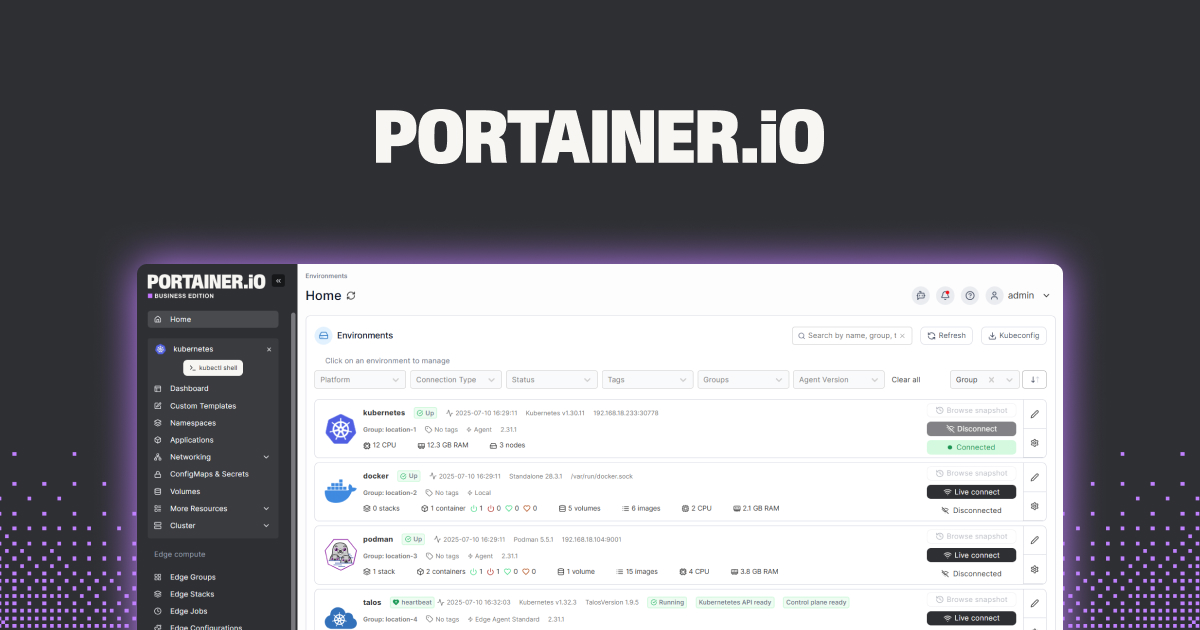
Stirling-PDF earned its XDA shoutout the honest way: it is a single Docker container that exposes 50+ PDF tools through a browser, runs on a Raspberry Pi, and never sends a document anywhere. The 2.9 release in April 2026 added server-side sharing, group signing, and a dark-mode viewer. None of that is enough on its own, though. The Stirling-PDF UI is utilitarian, batch automation is light, and OCR depends on Tesseract, which is fine for English receipts and rough on multi-language scans. We tested seven Stirling-PDF alternatives that cover the same offline, privacy-first ground on Windows, macOS, and Linux.
Quick comparison
| App | Best for | Free plan | Paid from | Standout |
|---|---|---|---|---|
| PDFsam Basic | Splitting, merging, rotating PDFs | Free | Free | The cleanest desktop split-merge UI in the genre |
| Xournal++ | Annotating, signing, handwriting | Free | Free | Tablet-grade inking on Wacom and Windows Ink |
| PDF Arranger | Reordering and combining pages | Free | Free | Drag-and-drop page thumbnails, nothing else |
| OnlyOffice | Editing PDF text and forms | Free | $7/user/mo | Word-processor-style editing of PDF content |
| PDF24 Creator | Windows users who want one app for everything | Free | Free | 30+ tools and a virtual printer on Windows |
| LibreOffice Draw | Editing text and graphics inside a PDF | Free | Free | Already installed on most Linux systems |
| Sejda Desktop | Desktop client with a polished UI | Free with daily limits | $7.50/mo | The same clean Sejda web UI, offline |
Why people leave Stirling-PDF
The complaints are predictable for an open-source project that ships fast:
- The UI feels like a tool grid. Stirling-PDF lays 50+ operations on one page. It is efficient once you know what you want, and overwhelming until then.
- OCR is Tesseract-only. Tesseract is solid for clean English text and struggles with multi-column layouts, handwriting, or non-Latin scripts. ABBYY-grade accuracy is not on the table.
- No native desktop app on macOS or Linux out of the box. Stirling-PDF runs in a browser against a server you set up. Windows has an unofficial standalone build; macOS and Linux users either run Docker or visit localhost.
- Form editing is basic. You can fill PDF forms. Designing them, or editing complex AcroForm structures, is not what Stirling-PDF is for.
The picks below trade some of Stirling-PDF’s all-in-one-server appeal for sharper UX, better OCR, or richer editing.
The alternatives
1. PDFsam Basic, the clean desktop merger
PDFsam Basic is the desktop app every PDF tutorial linked to before Stirling-PDF arrived, and the reasons hold up. Split, merge, rotate, extract pages, and mix files between PDFs through a UI that does each task in a single panel. The Java backend is fine on any reasonable laptop and the app does not phone home.
Where it falls short: the basic edition does not edit text, fill forms, or compress PDFs. Those features live in PDFsam Enhanced and PDFsam Visual, which are paid.
Pricing:
- Free: PDFsam Basic, full split-merge feature set.
- Paid: PDFsam Enhanced from $59/yr for text editing and OCR; PDFsam Visual from $89/yr.
- vs Stirling-PDF: cleaner desktop UI for the split-merge core, fewer overall tools.
Migrating from Stirling-PDF: PDFs are PDFs. No migration; install and drop files in.
Download: pdfsam.org
Bottom line: the default desktop pick for owners who only split and merge. If that is 80% of your PDF work, this is the upgrade in feel.
2. Xournal++, the annotation and signing tool
Xournal++ is the open-source annotation app for PDFs, handwritten notes, and form fills. Pressure-sensitive inking on Wacom and Surface tablets is the standout, and the export keeps annotations embedded in the PDF rather than as a separate layer.
Where it falls short: it is not a PDF editor in the “change the source text” sense. It paints on top of the page. Pages cannot be added or reordered cleanly inside the app.
Pricing:
- Free, GPL license.
- No paid tier.
Migrating from Stirling-PDF: Xournal++ opens any PDF directly. Save as .xopp for the editable format or export PDF for sharing.
Download: xournalpp.github.io
Bottom line: if your PDF workflow is signing contracts, marking up student papers, or taking handwritten notes, this is the pick. It does what Stirling-PDF’s annotate tab gestures at, but properly.
3. PDF Arranger, the drag-and-drop reorganizer
PDF Arranger is a small Python app whose entire job is reordering and combining PDF pages by dragging thumbnails. Rotate, duplicate, delete, split into multiple files, all from a single thumbnail view. It is the operation Stirling-PDF buries inside a multi-step page-management screen.
Where it falls short: no text editing, no OCR, no annotation. By design.
Pricing:
- Free, GPL license.
Migrating from Stirling-PDF: open a PDF, rearrange, export. No state to migrate.
Download: github.com/pdfarranger/pdfarranger
Bottom line: the tool to install alongside Xournal++ when you want every basic PDF operation handled by a small focused app.
4. OnlyOffice, the office-suite approach
OnlyOffice treats a PDF like a Word document. You open it, the text becomes editable in place, and you save back as PDF. The desktop editor runs on Windows, macOS, and Linux, and supports DOCX, XLSX, and PPTX as bonus formats. It is the only tool on this list that competes with paid Adobe Acrobat on real text editing.
Where it falls short: complex PDFs with multi-column layouts or overlapping text get re-flowed in ways you do not want. Heavy form-design work is still better in Adobe.
Pricing:
- Free: desktop editor.
- Paid: ONLYOFFICE Workspace from $7/user/mo for hosted collaboration.
Migrating from Stirling-PDF: OnlyOffice opens any PDF directly. Use Stirling-PDF for batch operations, OnlyOffice for “change this paragraph” work.
Download: onlyoffice.com/download-desktop.aspx
Bottom line: the pick for people whose actual job is editing PDFs as documents, not transforming them as files.
5. PDF24 Creator, the all-in-one Windows app
PDF24 Creator is the Windows answer to Stirling-PDF’s tool grid: 30+ PDF operations bundled into a single installer, plus a PDF24 virtual printer for any app that can print. Merge, split, compress, OCR (English-focused), convert from Office formats, and add signatures, all in one window.
Where it falls short: Windows only. The macOS and Linux versions of PDF24 are web-based and do not match the desktop feature set.
Pricing:
- Free for personal and business use on the desktop.
- Paid: PDF24 Cloud and the API have paid tiers; the desktop app does not.
Migrating from Stirling-PDF: install on Windows, the toolbar replicates most of Stirling-PDF’s grid. No file conversion needed.
Download: tools.pdf24.org/en/creator
Bottom line: the right pick for Windows users who want Stirling-PDF’s breadth without setting up a server.
6. LibreOffice Draw, the surprise PDF editor
LibreOffice Draw opens PDFs as editable Draw documents. Text, images, and shapes can be moved, edited, or deleted before exporting back to PDF. It is already installed on most Linux distros and free everywhere else, which makes it the lowest-friction text-edit option on this list.
Where it falls short: layout fidelity is a coin flip. Simple PDFs survive an edit perfectly; multi-column reports or magazine layouts come back wrong.
Pricing:
- Free, LGPL license.
Migrating from Stirling-PDF: open a PDF in Draw, edit, export back to PDF. No data conversion.
Download: libreoffice.org/discover/draw
Bottom line: the right fallback when you need to change two lines of text in a PDF you already opened in LibreOffice for something else.
7. Sejda Desktop, the polished UI offline
Sejda Desktop is the offline version of the Sejda web app, and the UI is the same: large buttons per task, sensible defaults, and an output preview before you commit. It compresses, OCRs, edits text, fills forms, and signs PDFs without sending anything off the machine.
Where it falls short: the free tier caps you at three tasks per hour and files under 50 MB. Beyond that you pay a subscription. OCR is good but Tesseract-based, like Stirling-PDF’s.
Pricing:
- Free: 3 tasks/hour, 50 MB max file size.
- Paid: $7.50/mo Week Pass, $25/mo Monthly, $63/yr Annual.
Migrating from Stirling-PDF: install, drop files in. Sejda’s job tracker shows everything in flight, which Stirling-PDF does not.
Download: sejda.com/desktop
Bottom line: the pick for owners who want the same friendly UI offline as the web app and do not mind a small subscription for unlimited use.
How to choose
- Pick PDFsam Basic if you mostly split and merge and want a desktop UI that does only that, cleanly.
- Pick Xournal++ if signing, marking up, and inking on a tablet is your main job.
- Pick PDF Arranger if drag-and-drop page reordering is what you came for.
- Pick OnlyOffice if you need real text editing inside the PDF.
- Pick PDF24 Creator if you are on Windows and want Stirling-PDF’s breadth without Docker.
- Pick LibreOffice Draw if it is already installed and the edit is small.
- Pick Sejda Desktop if the polished hosted-app feel of Sejda is what you keep coming back for.
- Stay on Stirling-PDF if you genuinely value the self-hosted browser model and the 50-tool grid, and want everyone on the home network to share one instance.
FAQ
Is Stirling-PDF actually free? Yes. Stirling-PDF is Apache 2.0 licensed and runs entirely on your own hardware. There is no paid tier and no telemetry by default.
Which Stirling-PDF alternative has the best OCR? None of the open-source desktop options match commercial ABBYY FineReader. Within this list, OnlyOffice and Sejda do best on clean printed text; Stirling-PDF, PDF24, and Sejda all use Tesseract under the hood.
Can I run Stirling-PDF on Windows without Docker? Yes. The community ships a standalone Windows build, though it lags the Docker version by a release or two. Most macOS and Linux users stay on the Docker image.
What is the closest single-app replacement for Stirling-PDF on Linux? PDFsam Basic plus PDF Arranger plus Xournal++ covers the practical core. PDF24 has a Linux build but it is web-based. There is no single Linux desktop app that hits all 50+ Stirling-PDF operations.
Does any alternative beat Adobe Acrobat? For pure editing fidelity on complex forms, no. For privacy and cost, all of them do. OnlyOffice is the closest open-source competitor to Acrobat’s editing surface.