Local vision language models went from party trick to actual tool in the last twelve months. Llama 3.2 Vision runs on a mid-range GPU. Qwen2.5-VL reads screenshots better than most cloud APIs did two years ago. Google’s Gemma 3 multimodal handles charts and receipts without much drama. What changed is not only the models. The apps that host them have caught up too. You can drop a screenshot into a chat window on your own laptop, ask what it says, and get a clean answer in a few seconds, no image leaving the machine. We tested seven of the best desktop apps for running local vision language models on Windows, macOS, and Linux, all free to start.
What to look for
A few things separate the useful vision-capable clients from the ones that get uninstalled by the weekend.
- Multimodal model support. The app needs to load recent vision-capable GGUFs (Llama 3.2 Vision, Qwen2.5-VL, LLaVA, Gemma 3 multimodal) without a manual llama.cpp build.
- VRAM headroom. A 7B vision model at 4-bit fits in roughly 6 to 8 GB. The app should warn you before it tries to load a checkpoint that will not fit.
- Drag-and-drop image input. Pasting a file path works, dragging an image onto the message field feels like real software.
- API or GUI, ideally both. A local OpenAI-compatible endpoint lets you plug vision into editor extensions and scripts.
- Model discovery. Hugging Face is the catalogue; apps that search it in-place save a manual download step.
- Batch and folder OCR. Some workflows are one image at a time. Others need to read a folder of scans.
Quick comparison
| App | Best for | Platforms | Free plan | Starting price/mo | Rating |
|---|---|---|---|---|---|
| Ollama | CLI and local API that everything plugs into | Windows, macOS, Linux | Yes (open source) | $0 | 4.8/5 |
| LM Studio | Polished GUI with drag-drop images | Windows, macOS, Linux | Yes | $0 | 4.7/5 |
| Open WebUI | Browser front-end for a home server | Windows, macOS, Linux (Docker) | Yes (open source) | $0 | 4.6/5 |
| Jan | Fully open-source offline client | Windows, macOS, Linux | Yes (open source) | $0 | 4.5/5 |
| Msty | Side-by-side vision model comparison | Windows, macOS, Linux | Yes | $0 (paid tier available) | 4.5/5 |
| AnythingLLM | Vision plus RAG over local documents | Windows, macOS, Linux | Yes (open source) | $0 | 4.4/5 |
| GPT4All | Lightweight client for low-VRAM machines | Windows, macOS, Linux | Yes (open source) | $0 | 4.3/5 |
The apps
1. Ollama for the CLI and local API behind every other app
Ollama runs local models behind an OpenAI-compatible endpoint on localhost, and multimodal support now covers Llama 3.2 Vision, Qwen2.5-VL, LLaVA, and Gemma 3 multimodal. Pull a model with a one-line command, pipe an image path into the CLI, and get a description back in the terminal. Every other app on this list can point at an Ollama endpoint for the inference layer.
Where it falls short: No native GUI for dragging images. You either use the terminal or bolt a chat client on top.
Pricing: Free.
Platforms: Windows, macOS, Linux.
Download: Ollama
Bottom line: Start here. The other clients get more useful once Ollama is already running.
2. LM Studio for a polished GUI with drag-drop image input
LM Studio pairs a clean chat window with a built-in Hugging Face search that filters by GGUF quant and vision capability. Drop an image into the message field and the app routes it through the model’s projector file, so the same conversation can move from text to a screenshot without any setup. The MLX engine on Apple Silicon runs Qwen2.5-VL at usable speed on a MacBook without a discrete GPU.
Where it falls short: Closed source. That matters more once the workflow starts touching sensitive images you would rather audit end to end.
Pricing: Free for personal and internal work use.
Platforms: Windows, macOS, Linux.
Download: LM Studio
Bottom line: The fastest way to try a local vision model without touching a terminal.
3. Open WebUI for a browser front-end that pairs with Ollama
Open WebUI is the browser-based chat surface most Ollama users end up in front of. Multi-user mode makes it a fine pick for a home server that every device on the network can reach. Drag an image onto a chat and the app routes it to any multimodal model you have pulled. Per-chat model switching means you can hop between a text-only Qwen and a vision-capable Llama 3.2 mid-conversation.
Where it falls short: You are running Docker or a Python install as the entry point. If a native app icon on the dock matters, this is not the one.
Pricing: Free.
Platforms: Docker on Windows, macOS, and Linux; also runs bare-metal via Python.
Download: Open WebUI
Bottom line: The pick when the LLM stack lives on a home server and every device on the network should be able to talk to it.
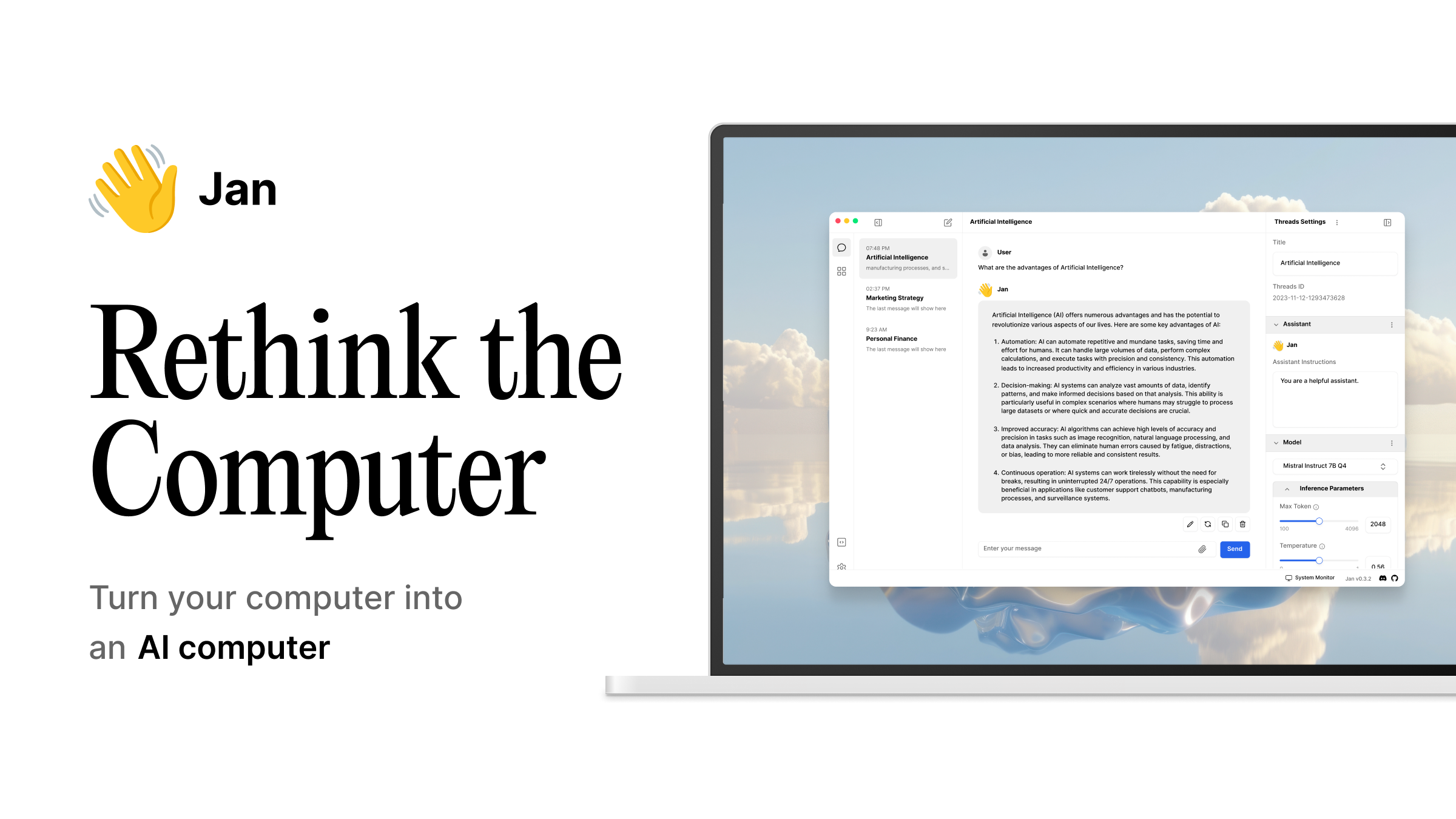
4. Jan for a fully open-source offline client
Jan is the fully open-source desktop chat client that treats offline as the default rather than an option. Vision support covers LLaVA and Llama 3.2 Vision, and the model hub flags multimodal checkpoints so you do not download a text-only build by mistake. No telemetry unless you opt in. Every setting is a clear toggle, not a menu three levels deep.
Where it falls short: The model catalogue is smaller than LM Studio’s, and rare quants sometimes need a manual GGUF import.
Pricing: Free.
Platforms: Windows, macOS, Linux.
Download: Jan
Bottom line: The pick when the audit trail matters and closed-source clients are off the table.
5. Msty for a chat client that compares two vision models side by side
Msty runs multiple local models in one window with a split view, which is the exact flow you want when picking between Qwen2.5-VL and Llama 3.2 Vision on the same screenshot. Attach an image once, get two answers back, keep the one that read the receipt right. The Knowledge Stacks feature also indexes local documents for RAG, so image and text queries share a workspace.
Where it falls short: The free tier is generous but a handful of quality-of-life features sit behind the paid Aurum plan.
Pricing: Free tier available. Paid Aurum plan for extras.
Platforms: Windows, macOS, Linux.
Download: Msty
Bottom line: The right pick when the workflow is really “which model handled this image better”.
6. AnythingLLM for vision plus RAG on local models
AnythingLLM is a private, self-hosted chatbot that treats every document, and increasingly every image, as a first-class citizen in a workspace. Point it at a local Ollama or LM Studio endpoint running a multimodal model, and it will accept image uploads inside a chat, index them alongside PDFs, and let you query across the mix. The desktop app is a single installer; the server build drops into Docker.
Where it falls short: The RAG pipeline adds moving parts, so the first setup is slower than a bare chat client.
Pricing: Free desktop app. Hosted tier for teams sits behind a paid plan.
Platforms: Windows, macOS, Linux.
Download: AnythingLLM
Bottom line: The pick when the vision workflow is really “read this image and answer against the rest of my library”.
7. GPT4All for a lightweight client on low-VRAM machines
GPT4All from Nomic keeps the install small and the hardware bar low. Vision support is limited to a handful of smaller multimodal checkpoints, which is on-brand for an app that targets laptops without a discrete GPU. The LocalDocs feature turns a folder into a RAG source without spinning up a container. It will not compete with LM Studio on model breadth, but it will run on hardware that Msty or Open WebUI would choke on.
Where it falls short: Fewer supported vision models than the rest of the list, and larger multimodal checkpoints simply refuse to load on lower-spec hardware.
Pricing: Free.
Platforms: Windows, macOS, Linux.
Download: GPT4All
Bottom line: The pick when the machine is a modest laptop and the model needs to fit in system RAM.
How to pick the right one
Match the client to how you actually work.
- CLI power user: install Ollama and stop there. Scripts, cron, and editor extensions do the rest through the OpenAI-compatible endpoint.
- GUI-first: LM Studio on a single-user machine, Open WebUI once more than one person or one device needs access.
- Low VRAM: GPT4All with a small multimodal checkpoint, or LM Studio on Apple Silicon leaning on unified memory.
- Private OCR at scale: AnythingLLM pointed at an Ollama endpoint, indexing a folder of scans so answers can cite specific pages.
- API for a coding workflow: Ollama’s endpoint plugged into a VS Code extension that accepts image inputs.
- Comparing models on the same image: Msty’s split view, then keep the winner as the default in whichever client you use day to day.
FAQ
Can you run a vision LLM on a laptop without a GPU?
Yes, but slowly. A 3B or 4B multimodal model at 4-bit quantisation runs on 8 GB of RAM and a modern CPU with tolerable response times for one-off queries. Anything larger wants a discrete GPU or Apple Silicon.
Which vision model is best for reading screenshots and receipts?
Qwen2.5-VL is the current pick for text-heavy image tasks like screenshots, receipts, and forms. Llama 3.2 Vision is stronger on natural photos and scene description. Both run locally through Ollama or LM Studio, so you can keep both installed and switch per task.
Does the image ever leave my machine?
Not if the app is set up right. Ollama, Jan, Open WebUI, GPT4All, and AnythingLLM run inference locally by default and never send image bytes to a remote server. LM Studio and Msty are also local-first, though both offer optional cloud model routes that you can leave switched off.
How much VRAM do I need for a vision LLM?
A 7B vision model at 4-bit fits in about 6 to 8 GB of VRAM including the projector file. A 13B multimodal wants 10 to 12 GB. Apple Silicon uses unified memory, so a 16 GB Mac handles most 7B vision models without a separate GPU.
Can I plug a local vision model into an editor extension?
Yes. Ollama’s OpenAI-compatible endpoint accepts image inputs in the standard chat/completions payload, so any editor extension that speaks OpenAI’s format can call a local vision model in place of a hosted one. The setup is a single base URL change in the extension config.
Is a local vision model good enough to replace a cloud API for OCR?
For clean scans and screenshots, yes. Qwen2.5-VL on a mid-range GPU reads printed text at accuracy close to hosted APIs. For handwriting, faded receipts, or heavily rotated pages, a dedicated OCR engine still wins. Pair a vision LLM with a classic OCR pass for the awkward cases.