
A year ago, “AI video editing” mostly meant auto-subtitles and a passable background remover. Now it means generative b-roll on a timeline, voice cloning that holds up at conversational length, automatic rotoscoping that survives motion blur, and full text-to-video clips that drop into a sequence next to footage you shot on a phone. The XDA crowd is running entire short edits through Claude Code without opening a non-linear editor at all. The desktop apps below are the ones that actually deliver on the AI features they advertise, ranked for the work people do most: cuts, captions, color, voice, and gen fill.
There are eight tested across mixed Mac, Windows, and Linux machines, with a mix of paid, freemium, and free options. Each section explains what the AI features actually do, what they cost, and where each app falls short.
What to look for in an AI video editor
Almost every NLE now claims “AI features”, so it helps to look past the marketing and at the specific capabilities that change a workflow:
- Speech-to-text accuracy. Good captions and edit-by-transcript only work if the speech model handles accents and background noise.
- Auto reframe and reframe-to-9:16. Genuinely useful for repurposing horizontal interviews to vertical short-form.
- Generative b-roll and inpainting. Filling a gap with a few seconds of usable footage is the most time-saving feature in this category.
- Voice cloning and dialogue cleanup. Quality varies widely, and consent and rights handling matter.
- Object removal and rotoscoping. The new motion tracking that survives motion blur and partial occlusion is the difference between “demo” and “production”.
- GPU and disk requirements. Several of these apps need 8GB+ VRAM, fast NVMe scratch space, and decent CPU cores to feel usable.
Quick comparison
| App | Best for | Free plan | Starting price/mo | Standout AI feature |
|---|---|---|---|---|
| Runway | Generative video | Limited credits | Around $15 | Gen-4 text and image to video |
| DaVinci Resolve | Full pipeline | Yes, full Studio in free for many users | One-time around $295 | Voice Isolation, Magic Mask, Studio Neural Engine |
| Adobe Premiere Pro | Polished long-form | No, 7-day trial | Around $22.99 | Generative Extend, Enhance Speech |
| CapCut Desktop | Short-form social | Yes | Around $9.99 | Auto captions, talking-head templates |
| Descript | Edit-by-transcript | Yes, generous | Around $24 | Studio Sound, Overdub voice clone |
| Pika | Stylized gen video | Limited credits | Around $10 | Strong stylization and “scene ingredients” |
| Topaz Video AI | Upscaling and restoration | 30-day trial | One-time around $299 | Best-in-class upscale and slow-mo |
| Kapwing | Browser team workflows | Yes | Around $16 | Auto cut filler words, multi-track web editor |
The apps
1. Runway, the generative video flagship
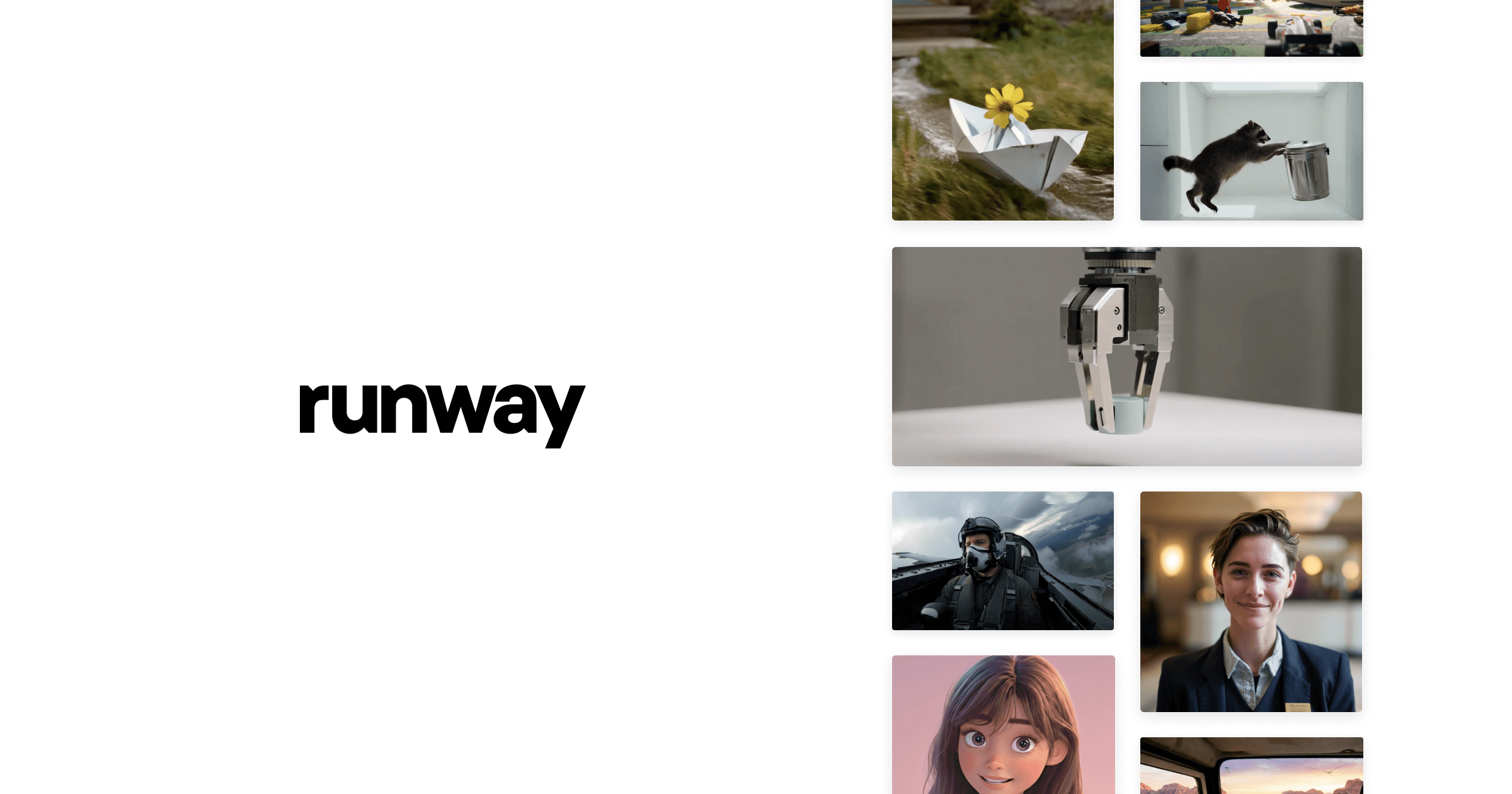
Runway’s Gen-4 model is the one most editors test first when they want generative b-roll, opening shots, or short stylized cutaways. The web app pairs with a desktop tool that handles iteration, asset organization, and round-tripping into a traditional NLE. Recent updates added longer clip lengths, better motion tracking, and stronger consistency between generated shots.
Where it falls short: credit costs add up quickly when you iterate on motion-heavy prompts, and exports are still capped on the lowest tier. Audio generation is weaker than the video side.
Pricing: Free tier with limited credits. Standard starts around $15 per month billed annually, with bigger creator and team plans above.
Platforms: macOS, Windows, plus a strong web app.
Download: Runway website
Bottom line: Pick Runway when your edit needs new footage that does not exist. Skip it if you mostly cut and color existing clips.
2. DaVinci Resolve, the all-in-one with surprising AI
Resolve continues to be the most complete editor in the desktop list, and the AI features under the Studio Neural Engine are the reason it earned a slot here. Voice Isolation strips a noisy hotel room out of an interview without artifacts. Magic Mask rotoscopes a moving subject in a few clicks. Speech-to-text Edit lets you cut by reading. Plus you get color, Fairlight audio, and Fusion VFX in the same app.
Where it falls short: the Studio license unlocks most of the AI work, and the free version is intentionally limited in those areas. The hardware requirements for the AI features are real.
Pricing: Free version is full-featured for most NLE tasks. Studio is a one-time around $295 license.
Platforms: macOS, Windows, Linux.
Download: Blackmagic Design
Bottom line: The most editor for the money if you can afford the Studio license once. Linux support is the only desktop NLE that takes that seriously.
3. Adobe Premiere Pro, the long-form workhorse
Premiere remains the default for documentary, narrative, and corporate long-form. The 2026 cycle added Generative Extend, which fills a few seconds of head or tail on a clip when you need it, and Enhance Speech, which cleans up dialogue almost as well as a dedicated audio editor. The new captioning and translation pipeline replaces a lot of third-party plugin work.
Where it falls short: subscription only, and the AI features are still uneven across machine specs. Project files remain heavier than the alternatives.
Pricing: No free tier, 7-day trial. Single-app subscription around $22.99 per month, the full Creative Cloud is more.
Platforms: macOS, Windows.
Download: Adobe
Bottom line: If you already pay for Creative Cloud and ship long edits, the new AI features make Premiere materially faster than it was a year ago.
4. CapCut Desktop, the short-form factory
CapCut’s desktop app is the same toolset that powers most of the polished short-form on TikTok and Reels. Auto captions, talking-head templates, beat-aware cuts, and a deep library of stylized transitions sit a click away. The AI script-to-video feature is improving with each release, and the auto reframe handles vertical conversion well.
Where it falls short: the free tier is generous but pushes the user toward CapCut’s stock library and watermarked exports for some templates. Some advanced AI features moved to the paid tier in recent updates.
Pricing: Free with caps. Pro starts around $9.99 per month.
Platforms: macOS, Windows.
Download: CapCut
Bottom line: Hard to beat for vertical short-form. Less suitable for long-form, color-critical work, or anything client-facing where watermarks creep in.
5. Descript, the edit-by-transcript pioneer
Descript treats video like a Google Doc. Cut a sentence, the clip cuts. The Studio Sound feature still produces some of the cleanest voice cleanup on the market, and the Overdub voice clone is good enough for short patch edits when a re-record is impossible. Multi-track timelines, screen recording, and a podcast workflow are all integrated.
Where it falls short: the transcript-first paradigm gets in the way of frame-precise edits. The voice clone is excellent at short patches and weaker at long generated dialogue.
Pricing: Free tier with hourly transcription cap. Hobbyist tier starts around $24 per month per editor.
Platforms: macOS, Windows.
Download: Descript
Bottom line: The right tool for podcasters, talking-head creators, and anyone editing a lot of interviews. Not the right tool for action sports, music videos, or commercial color work.
6. Pika, the stylization specialist
Pika sits next to Runway in the generative video bucket but skews more toward stylized, character-driven shots than photoreal b-roll. The “scene ingredients” workflow lets you reference characters, props, and lighting across multiple shots, which is genuinely useful for short narrative work. Iteration speed is fast even on the lower tiers.
Where it falls short: photoreal output is weaker than Runway Gen-4. Credit pacing on the free tier is tight.
Pricing: Free tier with limited credits. Standard plan around $10 per month.
Platforms: Web app and a lightweight desktop wrapper plus Discord integration.
Download: Pika
Bottom line: Pick Pika for stylized, music-video, or animated short work. Pair with Runway when you need both photoreal and stylized in the same sequence.
7. Topaz Video AI, the upscale and restoration heavyweight
Topaz earned its place by being the best at the boring, expensive parts: upscaling SD or 1080p footage to 4K without smearing, generating slow motion that holds up under scrutiny, and stabilizing handheld shots without the warping that shows up in NLE-built stabilizers. The 2026 update widened the model library and improved interpolation under fast motion.
Where it falls short: it is a render-house, not an editor. You feed it clips, choose a model, and wait. Render times can be long on machines without strong GPUs.
Pricing: 30-day trial. Lifetime license around $299, with optional yearly upgrade plans.
Platforms: macOS, Windows.
Download: Topaz Labs
Bottom line: A specialist tool that pays for itself the first time it rescues archive footage. Not a standalone editor.
8. Kapwing, the browser-based team editor
Kapwing is the only fully browser-based app in this list, and it earned the slot because the AI auto-cut, auto-caption, and auto-trim-filler-words features are now strong enough to handle real client work. Multi-editor projects and a comments timeline make it the easiest tool for distributed teams that want to ship social cuts fast.
Where it falls short: browser-only limits the timeline complexity, and some features still depend on stable upload bandwidth. Color tools are basic.
Pricing: Free tier with watermark on exports. Pro starts around $16 per month billed annually.
Platforms: Browser-based, runs on macOS, Windows, Linux, Chromebook.
Download: Kapwing
Bottom line: A good fit for marketing teams and freelancers who collaborate on short-form. Not the right call for color-critical or long-form work.
How to pick the right one
- If your edit needs new footage that does not exist, pick Runway or Pika.
- If you want one app that does everything, pick DaVinci Resolve.
- If you ship long-form documentary or corporate work, pick Adobe Premiere Pro.
- If you live on TikTok, Reels, or Shorts, pick CapCut Desktop.
- If your edits are talking heads or podcasts, pick Descript.
- If you restore old footage or finish upscales, pick Topaz Video AI.
- If your team edits in a browser together, pick Kapwing.
- Stack two of these, not five. Almost every editor ends up with one timeline tool, plus one specialist for either generative shots or upscaling.
FAQ
What is the best free AI video editor?
DaVinci Resolve is the best free desktop video editor by a wide margin, with usable AI features in the free build for many users. CapCut Desktop is the strongest free option for vertical short-form. Both export without nag screens for most workflows.
Are AI video editing tools good enough to replace a real editor?
Not yet, for client work or anything story-driven. They are very good at filler tasks like captioning, b-roll, cleanup, and stabilization. A working editor with these tools ships faster than a working editor without them, but the tools alone do not yet make edit decisions that hold up.
Can my laptop run apps like Runway and Topaz Video AI?
Cloud-first tools like Runway and Kapwing run on any modern laptop. Local tools like Topaz, DaVinci Resolve Studio, and the Studio Neural Engine features benefit heavily from a discrete GPU with 8GB+ of VRAM. Lower-spec machines will run them, slowly.
Is generative b-roll legal to use commercially?
The legal picture is still settling. Runway, Adobe, and Pika each have their own commercial-use terms tied to their training data. For paid client work, read each app’s commercial license, document the assets you generated, and avoid prompts that name living people or brand assets you do not own.


